
RXCamView turns your phone or PC into a friendly multi-camera viewer for compatible IP and CCTV systems. Here’s the honest 2026 guide — features, setup, fixes and the safest way to install it.

RXCamView is one of those quiet little apps that thousands of small-business owners and homeowners rely on every single day — but almost nobody writes about it honestly. As someone who has set up cameras for my own home office, my parents’ shop, and a friend’s short-term rental, I wanted to put together the kind of guide I wish I’d had on day one.
This is the complete 2026 walkthrough: what RXCamView actually is, how to install it on a PC and on your phone, how to add your cameras without losing a Saturday afternoon to it, the real features that matter, and the small fixes that solve 90% of “it won’t connect” frustrations. No fluff, no copy-paste from forums.
What is RXCamView?
RXCamView is a free multi-camera viewer app built for IP cameras, NVRs (Network Video Recorders) and DVRs that speak common protocols like ONVIF, RTSP and the P2P cloud IDs printed on the back of most budget security cameras. It was originally designed as a companion app for a family of white-label CCTV systems — the kind you’ll find rebranded under dozens of names on Amazon — and grew into a general-purpose viewer that plenty of people use with non-branded hardware too.
In plain English: if you have a small camera setup at home or at a shop and you want one tidy app that shows every feed on one screen, RXCamView is built exactly for that.
What RXCamView is good at
- Live multi-camera grids — view up to 16 feeds at once on a decent screen.
- Cloud P2P connection using the camera’s device ID, so you don’t have to fight with port forwarding.
- Playback from the camera’s SD card or NVR storage, with timeline scrubbing.
- Push notifications for motion events on supported devices.
- Two-way audio on cameras that have a microphone and speaker.
- Free to download and use, with no monthly subscription wall.
What it’s not
RXCamView is not a cloud recording service like Ring or Nest. Footage lives on your camera’s SD card or your NVR — the app is just the window you watch it through. It also isn’t a universal driver: if your camera doesn’t support ONVIF, RTSP or the matching P2P platform, it won’t show up no matter how many times you tap “Add device.”
Is RXCamView safe to use?
This is the question I get most often, and the honest answer is: the app itself is safe, but where you download it from matters a lot. RXCamView is published on the Google Play Store and the Apple App Store under the developer that maintains it. On mobile, always install from those two stores and you’re fine.
On Windows the situation is less tidy because there is no official Microsoft Store listing widely promoted. Most people install RXCamView for PC through an Android emulator like BlueStacks, which downloads the same Play Store version inside the emulator. That route is safe. The route I’d avoid is random “RXCamView.exe” downloads from no-name software directories — those are exactly where bundled adware and fake installers live.
How to install RXCamView on your phone (Android & iPhone)
Start here even if your end goal is PC — getting it working on mobile first makes troubleshooting much easier later.
On Android
Open the Google Play Store and search RXCamView.
Confirm the developer name matches the one listed on your camera’s manual or box. Counterfeit listings copy the icon but not the publisher name.
Tap Install. The app is small — under 100 MB.
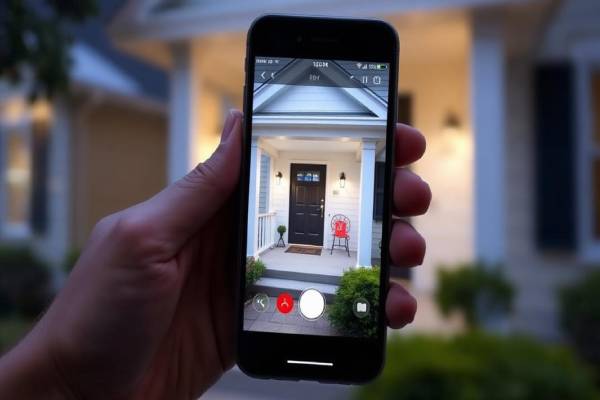
On first launch, allow camera, microphone, notification and local network permissions. Without local network access, the app cannot find cameras on your Wi-Fi.
On iPhone
Open the App Store and search RXCamView.
Tap Get, authenticate with Face ID or Touch ID and let it install.
When the app launches, accept the local network prompt — iOS hides Wi-Fi devices from apps that decline this.
Enable notifications so motion alerts actually reach your lock screen.
How to use RXCamView on PC (Windows 11, Windows 10 & Mac)
Because there isn’t a polished native desktop build, the cleanest way to run RXCamView on a computer in 2026 is through an Android emulator. It’s not as hacky as it sounds — millions of people use emulators daily for messaging, mobile games and exactly this kind of camera-viewer use case.
BlueStacks (easiest, works on Windows 11, 10 and Mac)
Go to bluestacks.com and download the latest installer. Avoid copies from third-party download portals.
Run the installer and let BlueStacks finish its first boot — it takes a few minutes the very first time.
Inside BlueStacks, open the Play Store, sign in with a Google account and search RXCamView.
Install the app, launch it, and you’ll get the same interface as on a phone but at desktop resolution.
Right-click the camera grid to use full-screen mode — surprisingly nice on a 24″ monitor.
Google Play Games (Beta) for PC
Google’s own emulator is lighter than BlueStacks and runs cleanly on modern Windows 11 hardware. The catch is that it’s officially aimed at games, so not every productivity app is whitelisted. RXCamView usually installs fine, but if it doesn’t show up in search, fall back to BlueStacks.
Use the camera manufacturer’s CMS software
If you bought a complete NVR kit, the box almost always includes a Windows CMS (Central Management Software) on a mini-CD or as a download link. That CMS reads the same cameras RXCamView reads. For multi-monitor security desks, a real CMS is more powerful than the emulated mobile app — it’s worth checking your kit’s downloads page before committing to an emulator.
Adding your first camera in RXCamView
The first add is the only one that ever feels tricky. After that you’re done. There are two common paths, and which you use depends on what’s printed on your camera.
Path A — Add by P2P cloud ID (the friendly way)
Power on the camera and connect it to your Wi-Fi using the steps in its manual (most cameras have a one-time QR pairing flow).
In RXCamView, tap the + icon → Add device → Cloud ID.
Enter the device ID printed on the camera’s sticker (it’s usually a long alphanumeric string).
Type the camera’s username and password. On budget cameras these default to admin / admin or admin / 12345; change them immediately after first login.
Save. The camera appears in your device list and a live preview loads in 5–10 seconds.
Path B — Add by IP address (for ONVIF and RTSP cameras)
Make sure your phone or PC is on the same Wi-Fi as the camera.
In RXCamView, tap + → Add device → IP / Domain.
Enter the camera’s local IP (you can find it in your router’s connected-devices list), the port (commonly 554 for RTSP or 80 for HTTP), and the camera credentials.
Save. If the camera supports ONVIF and is configured correctly, the feed appears within seconds.
The features worth actually using
It’s easy to install an app, glance at the live view, and never explore the rest. Here are the bits that quietly make your setup better.
Multi-grid layout
Tap the grid icon and pick 4, 9, or 16 panels. On a desktop the 9-grid layout is the sweet spot — readable feeds without your eyes bouncing everywhere. Drag and drop cameras between panels to put your front door in the top-left where you actually look first.
Smart playback
Tap a camera and switch from Live to Playback. Pick a date and the timeline shows colored bars for motion events. Drag the scrubber to jump exactly to the bark, the doorbell ring or the package drop — much faster than fast-forwarding minute by minute.
Push notifications and motion zones
Enable push notifications inside the app, then dive into each camera’s settings → Alarm → Motion zones. Draw a box only around the area that matters (the driveway, the door, the till) instead of the entire frame. You’ll cut false alerts by 70–90% almost overnight.
Two-way audio
On a supported camera, long-press the microphone icon and your voice plays through the camera’s speaker in near real-time. I use this to tell delivery drivers where to leave a parcel without running downstairs.
Snapshots and quick clips
The camera and clip icons in the bottom toolbar save snapshots and short recordings straight to your phone or PC. Handy when something happens and you want to share it without trimming a full SD-card export.
Privacy and security — small habits that matter
A camera app is only as safe as the cameras and passwords behind it. A few habits I always recommend after setting one of these systems up:
- Change every default password on every camera and NVR the moment you finish pairing. admin / admin is the first thing automated scanners try.
- Use unique passwords per device, stored in a password manager. If one camera firmware leaks, the others stay safe.
- Update camera firmware at least every six months. Most security flaws in cheap cameras are patched silently — but only if you check.
- Put cameras on a guest Wi-Fi network separated from your laptops and phones, if your router supports it. A compromised camera shouldn’t have a path to your work files.
- Disable cloud P2P if you only ever view cameras from inside your home. Less internet exposure, fewer risks.
- Cover indoor cameras when you’re at home. Physical privacy is still the easiest privacy.
Troubleshooting — the five issues people actually run into
Device offline” or the feed never loads
Nine times out of ten this is the camera, not the app. Check that the camera’s status LED is solid (not blinking), confirm it’s still on your Wi-Fi by looking in your router’s device list, and reboot it by unplugging power for 30 seconds. If the camera is on 5 GHz Wi-Fi and you’ve moved the router, range may be the problem — most budget cameras only do 2.4 GHz reliably.
Wrong password” even though you’re sure it’s right
Some cameras lock the account for 5 minutes after three failed logins. Wait, then try again with caps lock off. If you genuinely don’t remember the password, hold the camera’s reset button for 10 seconds — it returns to factory defaults and you can start fresh.
Notifications stop arriving
Phone OS battery savers are the usual culprit. Open your phone’s settings → Apps → RXCamView → Battery, and set it to Unrestricted. On iPhone, check Settings → Notifications → RXCamView and make sure Allow Notifications and Time-Sensitive are both on.
Live view is choppy or low resolution
Tap the quality button (usually HD/SD) on the live feed. Many cameras default to SD over mobile data to save bandwidth. On Wi-Fi switch to HD — and if it’s still choppy, the camera’s Wi-Fi signal is weak. A Wi-Fi extender near the camera usually fixes this faster than buying new hardware.
App crashes after a Windows or BlueStacks update
Open BlueStacks → Settings → Engine, and try switching the renderer between DirectX and OpenGL, then reboot the emulator. If RXCamView itself was recently updated and started crashing, uninstall and reinstall it from the in-emulator Play Store; corrupted updates are surprisingly common.
RXCamView vs other camera viewer apps
RXCamView lives in a crowded category — there’s also XMEye, V380 Pro, iCSee, CamHi and a dozen others. They all do the same core job. What sets them apart in real use:
- RXCamView — clean grid view, reliable P2P, good multi-camera handling. My pick for mixed-brand small setups.
- XMEye — older interface but rock-solid with Xiongmai-chipset NVRs.
- V380 Pro — great for single-camera Wi-Fi setups, weaker for big multi-camera deployments.
- iCSee — feature-heavy, can feel overwhelming for casual users.
Your camera will usually only support one or two of these. Check the manual — whichever app the manufacturer points you to is the one with the most stable integration. RXCamView often shows up as the recommended option for white-label ONVIF kits, which is why so many users land on it.
Key takeaways
- RXCamView is a free multi-camera viewer for IP cameras, NVRs and DVRs that support ONVIF, RTSP or P2P cloud IDs.
- On phone, install from the Play Store or App Store. On PC, the cleanest route in 2026 is BlueStacks or your camera kit’s official CMS software — skip random EXE downloads.
- Add cameras using the P2P cloud ID for the easiest pairing, or the local IP if you prefer ONVIF / RTSP control.
- The motion zones, smart playback and two-way audio are the features people miss most often — turn them on once and you’ll wonder how you lived without them.
- Change every default password, update firmware, and use a separate Wi-Fi network for cameras. That’s 80% of the security work right there.
A small camera setup shouldn’t feel intimidating. With RXCamView running on your phone and your PC, your front door, your shop till and your back garden are all one tap away — and after a weekend of tuning, you’ll barely have to think about it again.